
Test your rates with the Shipping Estimator
The Shipping Estimator quotes any cart to any address, without placing an order. It runs the same rate calculation as your checkout, with your rules, products and carriers, so what it shows is what checkout would offer for that cart. Use it after every rule change, and whenever a shopper reports a wrong or missing rate.
Steps
- Go to Shipping Estimator in the ASM menu, or select Test your rates → on the Dashboard.
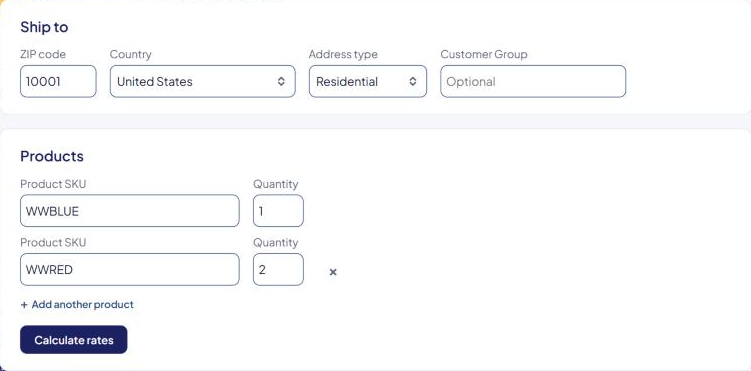
- Under Ship to:
- Enter the ZIP code (it says postal code for other countries).
- Choose the Country.
- Choose the Address type: Residential or Commercial. It starts on your store's default.
- Under Products:
- Type the product's Product SKU (Shopify and BigCommerce), Product code (Miva), Catalog ID (3dcart) or Product ID (Turbify and other platforms). After two characters, matching products are suggested. Pick one.
- Set the Quantity.
- Select Add another product for each extra product in the cart.
- Select Calculate rates.
After "Calculating rates…", the results appear under Your rates: each method, its price, and how long it took. Methods that were tried but not offered are listed under Not shown at checkout, with the reason. Turn on Explain results for plain-language reasons and a breakdown of each price. See Read Shipping Estimator results.
Nothing is saved or sent anywhere: no order, no quote in your carrier account.
Testing customer tags or groups
If your store uses the Customer Tags/Groups extension, an extra field appears: Customer Tag (Shopify) or Customer Group (BigCommerce). Enter a tag or group to test rules that only apply to, or exclude, those customers. Leave it empty to quote as a regular shopper. Turbify doesn't send a customer tag with its quotes, so Turbify stores don't get this field.
Tips for useful tests
- Copy the real cart. Use the same products, quantities, ZIP code and address type as the shopper who reported a problem.
- Try both address types. Carriers often price residential and commercial addresses differently, and checkout may detect the type automatically.
- Test the edges. A very light cart, a very heavy one, and a mixed cart. A nearby ZIP code and a faraway one.
- Save a screenshot of the results, including the Not shown at checkout list. It's the most useful thing you can send support.
Messages you might see
- "Please enter a valid ZIP code." — the ZIP code needs at least 3 characters.
- "Please enter at least one product ID and quantity." — add a product.
- Not rated — a product in the cart couldn't be quoted:
- "not in the product catalog" — ASM doesn't know that SKU or ID. See A product is missing in ASM.
- "has no SKU, so checkout can't match it" — give the product a SKU in your store, then sync your products.
- "0 methods" in the heading — no method returned a rate for this cart and address. The Not shown at checkout list says why for each method. See No shipping methods at checkout.
- "The estimate failed (…)" — the quote didn't finish. Try again; if it keeps failing, contact support with the cart and address.
If your free trial has ended and you haven't subscribed, the Shipping Estimator shows only the alert banners. See Your free trial (and extra trial days).
Check that it works
Quote a product you know well to a nearby ZIP code. You should see the methods and prices you expect. If checkout shows something different, see Why the estimator and checkout can differ.