
Connect FedEx Freight
Connect your FedEx Freight account so ASM can quote FedEx Freight LTL rates at checkout. Like FedEx parcel, FedEx Freight connects with API keys from the FedEx Developer Portal.
Before you begin
Before you start
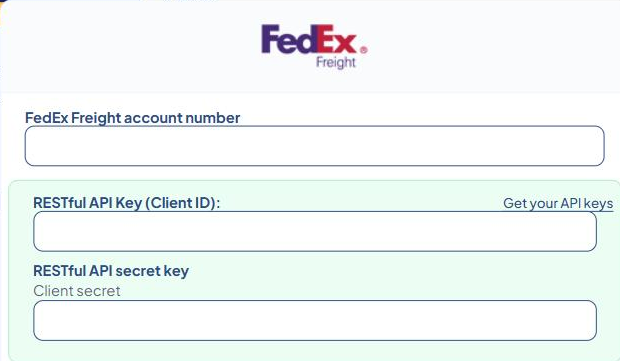
- Your FedEx Freight account number.
- A FedEx Freight API key and secret key. In the FedEx Developer Portal, create a project that includes FedEx's LTL freight rating API, link it to your FedEx Freight account, and copy the project's production API key and secret key.
- The FedEx Freight card in Settings → Carriers. It appears with the FedEx Freight extension. If you don't see it, contact support.
If you leave the FedEx Freight key fields empty, FedEx Freight quotes use the keys on your FedEx card instead. Separate FedEx Freight keys are the simplest setup, and Test connection checks whichever keys checkout will use.
Steps
- Go to Settings → Carriers and select FedEx Freight.
- Enter your FedEx Freight account number.
- Paste the API key into RESTful API Key (Client ID).
- Paste the secret key into RESTful API secret key (Client secret).
- If FedEx Freight gave you an x-client-id value, paste it into Customer identifier. Otherwise leave it empty.
- Set the freight options (see below).
- Select Save Settings.
- Select Test connection.
When you save new keys, ASM asks FedEx Freight for a connection straight away and shows the answer under the keys: "Connected. FedEx Freight accepted these keys.", "FedEx Freight refused these keys" with the reason, or "Saved, but FedEx Freight didn't answer just now. We try again every 5 minutes, or save again to retry now."
Freight options
- Role — who pays FedEx Freight: Shipper, Consignee or Third Party. Match how your account is set up.
- Freight guarantee — quote FedEx Freight's guaranteed service.
- Packaging type — how your freight is packed.
- Freight class — the class used when a product has none. See LTL freight in ASM.
- Accessorials — extra services added to every quote, such as a liftgate.
- Shipper street address, Shipper city, Shipper state, Shipper zip — your pickup address for FedEx Freight.
- Enable Freight Direct — FedEx Freight's home delivery service. Then pick a Freight Direct type (Basic, Basic By Appointment, Premium or Standard) and a Freight Direct transportation type (Delivery or Pickup).
Check that it works
A working connection shows "Connected. FedEx Freight quoted $… for a 300 lb pallet to …". The test is a real quote, so it may show up in your FedEx Freight account.
Common problems
"FedEx Freight refused this API key and secret key: …"
- Check the keys in your FedEx Freight API project, paste them again and save.
"FedEx Freight hasn't issued a connection for this API key and secret key yet."
- If you saved them in the last few minutes, wait 5 minutes and test again.
- Otherwise, save them again to retry.
"Your FedEx Freight connection has expired because …"
- FedEx Freight stopped accepting the saved keys. Get the current keys from your project and save them again.
"FedEx Freight uses the connection on your FedEx card. FedEx refused the API key and secret key there…" (or "…hasn't issued a connection for the API key and secret key there yet")
- Your FedEx Freight key fields are empty, and the keys on the FedEx card don't work. Either add FedEx Freight keys here, or fix the FedEx card. See Connect FedEx.
FedEx Freight emailed you that your API requests are missing an x-client-id (customer identifier)
- Paste the value from their email into Customer identifier, save, and select Test connection. It only applies when the FedEx Freight card has its own API key and secret key.
- If the test fails after you add it, clear Customer identifier, save, and contact support with the error.
"Enter your FedEx Freight RESTful API key and secret key (or your FedEx keys on the FedEx card) and save, then test again."
- No keys are saved on either card. Follow the steps above.