
Show delivery dates at checkout
Show shoppers when each shipping method will arrive, such as "Arrives" followed by a date. ASM works out the date from your processing time, your cut-off time and the carrier's transit time, or a number of days you set.
Before you begin
Before you start
- A delivery extension on your store, such as Delivery Estimates for Checkout. Without one, the Delivery Estimates group doesn't appear in Settings. See Plans and extensions.
- UPS connected, if your estimates use UPS transit times (Settings → Carriers → UPS). See Connect UPS.
- Your shipping methods set up in Shipping Rules.
Steps
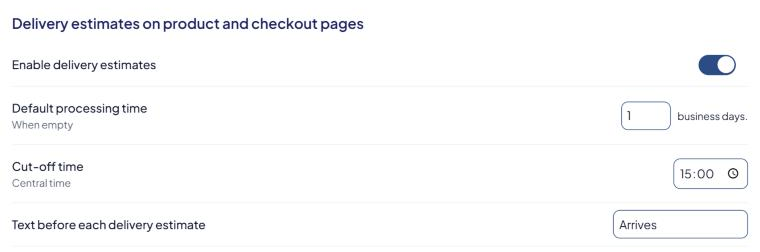
- Go to Settings → Delivery Estimates.
- Turn on Enable delivery estimates.
- Set Default processing time — how many business days you take to ship an order. It's used for any product without its own processing time.
- Set Cut-off time (Central time). Orders placed after it start processing the next business day.
- Set Text before each delivery estimate, for example
Arrives. - Under Delivery estimate for each method, choose what each method shows (see below).
- Select Save Settings.
Choose what each method shows
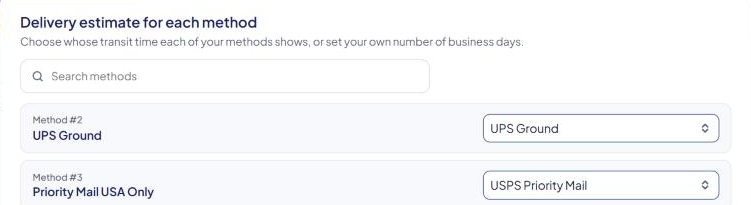
Delivery estimate for each method lists every shipping method ("Method #N" and its name). If you have more than 8, use Search methods. For each one, pick:
- Don't show an estimate — no date for this method.
- A carrier service, such as UPS Ground, FedEx 2 Day or USPS Priority Mail — the method shows that service's transit time.
- Custom setting — enter your own number of business days. Turn on Count Saturday if Saturdays count as delivery days for this method.
FedEx Ground Economy shows the delivery date FedEx commits to, for US addresses.
Match each method to the service it really ships with. A "Standard shipping" method that ships by UPS Ground should use UPS Ground.
Use Custom setting for methods without carrier transit times, such as local delivery, freight or flat-rate methods.
Closed dates and no-delivery dates
Depending on your extension, you may also see:
- Closed dates — "Days you don't ship", such as holidays. Orders aren't processed on these days.
- No delivery dates — "Days carriers don't deliver". These dates only affect methods set to Custom setting and the (Special + N) methods. A Special + N method whose carrier date falls on one of these weekdays counts from the next delivery day instead.
Processing time per product
A product can have its own processing time in its Process time field, for items that take longer to make or source. See Extension product fields.
Check that it works
Quote a cart in the Shipping Estimator. Each method with an estimate shows the date as your checkout shows it: in the method's name or note, or on its own line under the name on Miva stores. On Turbify, it shows the date your cart page shows. Then check your storefront checkout. See Test your rates with the Shipping Estimator.
Good to know
- All times are Central time, whatever your time zone. Convert your cut-off before you enter it.
- UPS and FedEx carrier dates follow the address type. Business addresses never show a Saturday or Sunday date. Homes can, because FedEx Home Delivery delivers on Saturdays. See Residential vs. commercial addresses.
- If you don't have a delivery extension, a Saturday delivery rule cut-off setting is under Settings → Shipping instead.