
Write package details to your orders
ASM packs every cart into boxes to price shipping. Order Details writes that packing onto each order in Shopify or BigCommerce, so your team can see which products go in which box.
Before you start
- Shopify or BigCommerce.
- Order posting turned on for your account. If you don't see Order Details under Settings, contact support and ask for it.
- Shopify only: the Write orders permission. If ASM doesn't have it yet, the page shows Click here to add order writing permissions. Select it and approve the new permission in Shopify.
Steps
- Go to Settings → Order Details (section Package breakdown on orders).
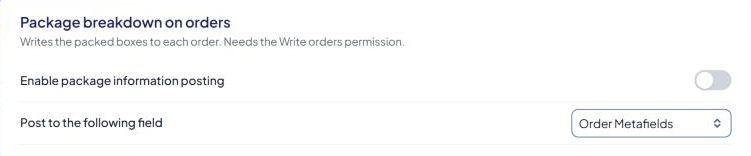
- Turn on Enable package information posting.
- Choose where to write it in Post to the following field:
- Shopify: Order Additional Details, Order Notes or Order Metafields.
- BigCommerce: Order Metafields or Staff Notes.
- Select Save Settings.
What gets written
One entry per packed box, numbered in order:
- ASM Package 1, ASM Package 2 and so on,
- the box's name (from box mapping) or its size,
- the origin ZIP code the box ships from, and
- the SKUs in the box with their quantities, for example
ABC-100 (x2), XYZ-7 (x1).
On BigCommerce, each entry also shows the box's shipping cost and weight.
Which field to choose:
- Order Additional Details (Shopify) — shown on the order page; any additional details already on the order are kept.
- Order Notes (Shopify) or Staff Notes (BigCommerce) — easy for your team to read.
- Order Metafields — best if another app, such as a shipping or fulfillment tool, reads the data. Each box is its own metafield in the "Advanced Shipping Manager" namespace, keyed "ASM Package 1", "ASM Package 2" and so on.
Free and flat-rate products aren't packed. Products that ship free on the chosen method (its Free shipping over amount, or the product's own Free shipping methods) and products with a Flat ship rates entry for it are taken out of the cart before packing, so they're left out of the boxes. When an order is free through Free shipping over, no box is written at all. To get a box on free orders, make the method free with its charge instead: clear Free shipping over, set Order value to start at the free amount, and leave every charge at $0. See Offer free shipping over an order amount.
Check that it works
Place a test order with two or three products, then open the order in your platform. The package entries should appear in the field you picked. To see how ASM will pack a cart before ordering, click a method in the Shipping Estimator results. See Read Shipping Estimator results.