
Connect AvaTax, TaxJar or TaxCloud
Who this is for: stores where ASM calculates sales tax at checkout (mainly Turbify stores) and that want a tax service to work out the rates instead of keeping a tax table by hand.
Before you begin
ASM works with AvaTax (Avalara), TaxJar and TaxCloud. You need your own account with the provider. Your store uses one provider at a time.
Before you begin
- Add the provider's extension on the Billing page, or contact support at support@advancedshippingmanager.com or 1-888-546-4932 (Mon–Fri, 9AM–5PM EST) and ask us to turn it on. The Taxes page then shows that provider's settings.
- Have your provider credentials ready (see each section below). Enter them yourself on the Taxes page. Don't email them to us.
AvaTax
- Go to Taxes.
- Under AvaTax settings, fill in:
- AvaTax Account Number:
- AvaTax License Key:
- AvaTax Company Code:
- AvaTax Tax Code: a backup tax code for shipping, used only when AvaTax Shipping Tax Code is empty. It isn't used for your products. If you leave it empty, ASM uses
FR020100. - AvaTax Shipping Tax Code: the tax code for shipping. If you leave it empty, ASM uses
FR020100.
- Under AvaTax Mode:, pick Sandbox while you test with an AvaTax sandbox account, or Production for live orders.
- Under Tax rates, add a rule for each state where AvaTax should calculate the tax, and tick its AvaTax box. To add a rule, see Set up sales tax rates.
- Select Save Settings.
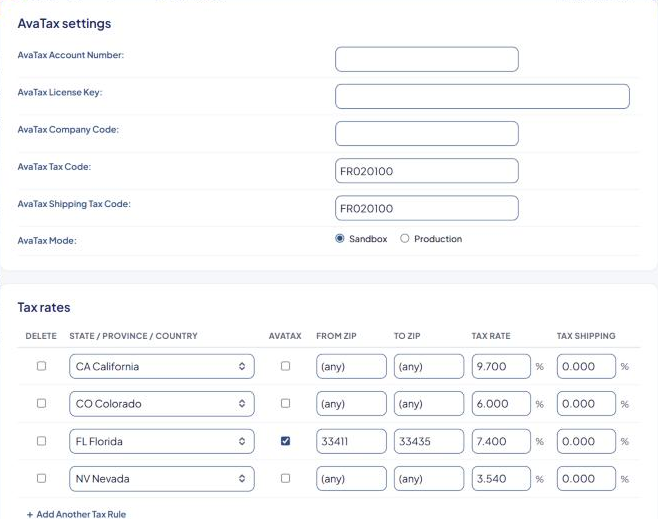
When you tick a rule's AvaTax box, its Tax Rate and Tax Shipping boxes are replaced by By AvaTax, because AvaTax works out both. Untick the box to see and edit the rule's own rates again. Rules without the box ticked keep using their own Tax Rate and Tax Shipping.
Tax codes for your products
ASM doesn't set a tax code for your products. On BigCommerce, a product's own tax code is sent to AvaTax when the product has one. Otherwise AvaTax uses its default product code, P0000000, and applies your AvaTax settings for each state, including exemption certificates.
TaxJar
- Go to Taxes.
- Under TaxJar settings, enter your TaxJar API Token:.
- Under Tax rates, add a rule for each state where TaxJar should calculate the tax, and tick its TaxJar box. The rule's Tax Rate and Tax Shipping boxes are replaced by By TaxJar.
- Select Save Settings.
TaxJar is used for US addresses only. Don't tick TaxJar on a Canadian or international rule: those addresses still use the rule's own Tax Rate and Tax Shipping, which are hidden while the box is ticked.
TaxCloud
- Go to Taxes.
- Under TaxCloud settings, enter your TaxCloud API ID: and TaxCloud API Key:.
- In TaxCloud Shipping TIC Code:, pick how shipping is classified: Shipping (11010) or Shipping & Handling (11000). Ask your tax adviser which one applies to you.
- Select Save Settings.
With TaxCloud there's no tax rules table: TaxCloud works out the tax for every US address. It isn't used for addresses outside the US.
Cancel an order on TaxJar or TaxCloud
The TaxJar and TaxCloud sections have a Cancel an Order on TaxJar: (or TaxCloud:) box. Type the Order ID and select Cancel Order to cancel that order on the provider's side, for example after you cancel it in your store.
Your saved keys are hidden
After you save, keys show as ********************. Leave the stars to keep the saved value. To change a key, select the field and type the new one, then select Save Settings.
Check that it works
- For AvaTax, start in Sandbox mode with a sandbox account.
- Place a test order to an address in a state that uses the provider. The Shipping Estimator doesn't show tax, so check the tax on the order itself.
- Compare it with the tax the provider's own calculator gives for the same cart and address.
- For AvaTax, switch to Production when you're happy, and select Save Settings.
If the tax is 0 or looks wrong, check the credentials, the mode, and that the matching rule has the provider's box ticked. Still stuck? Contact support with the state, ZIP code and cart you tested.