
Your Dashboard explained
The Dashboard is the first page you see when you open ASM. It tells you what still needs doing, whether anything is wrong, and gives you shortcuts to the pages you use most.
The menu
The menu on the left lists every page, top to bottom:
- Dashboard — with two pages under it: Overview (this page) and Carrier Status, how your carriers are doing. See The Carrier Status page.
- Settings — store-wide options and carrier connections. See Settings: where everything lives.
- Shipping Rules — your shipping methods and when each one shows.
- Markups — adjust what shoppers pay.
- Taxes — sales tax rates.
- Products — each product's shipping settings.
- Shipping Estimator — test any cart and address.
- Billing, Activity Log, Help and Log out.
Not every store sees every item:
- Taxes shows for Turbify stores, stores that use AvaTax, and a few others. Most Shopify and BigCommerce stores don't see it.
- Products shows when your store can search or upload product settings in ASM.
- Billing shows only for stores billed by ASM. See Plans and extensions.
The top of the menu shows your store name and platform. To make more room, collapse the menu with the button on its edge ("Collapse menu"), or drag the edge. On a phone, use Open menu.
When you open ASM from your Shopify admin, it opens in its own browser tab with this same menu.
Alerts at the top
Problems that need you show as banners at the top of every page: a carrier that needs connecting, ASM being off, a trial ending, a payment problem. Each has a button that takes you to the fix. See Alerts at the top of the admin, explained.
The Dashboard can also show a notice when a carrier you use isn't answering, for example "UPS isn't answering right now." Your rates from that carrier may be missing at checkout until it recovers. The notice links to Carrier status.
Finish setting up
New stores see a Finish setting up card with a progress bar. It ticks each step by itself and goes away once everything is done. See Finish setting up: your first-day checklist.
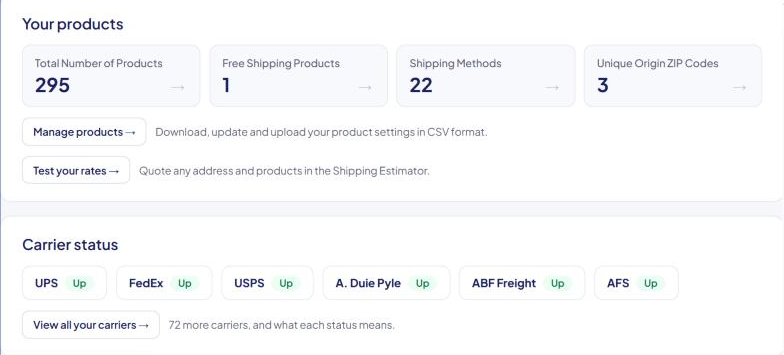
Your products
Four tiles sum up your store:
- Total Number of Products (called Products in ASM on platforms other than Shopify, BigCommerce and Turbify). See "Why is my product count lower than my store's?" below.
- Free Shipping Products
- Shipping Methods
- Unique Origin ZIP Codes — how many different places you ship from.
Select a tile to open the matching page. Below them:
- Manage products → opens Products, where you search and edit product settings or update them by CSV.
- Test your rates → opens the Shipping Estimator.
Carrier status
Shows how your carriers are doing. It loads a moment after the page. See The Carrier Status page.
Recent activity
The last three entries from your Activity Log: who signed in and what changed. Select View the activity log → for the full list. See See who changed what: the Activity Log.
Upgrade banner
Subscribed stores billed by ASM can see Upgrade to Bundle → or Upgrade to VIP →. It opens the Billing page, where you select the upgrade. See Change your plan or extensions.
BigCommerce: several storefronts
If your BigCommerce store has more than one storefront, a Select store: list lets you switch between them. Your main storefront is labeled (Main Store). See BigCommerce: multiple storefronts and channels.
Why is my product count lower than my store's?
On Shopify, BigCommerce and Turbify, ASM imports your whole catalog. On Shopify and BigCommerce the count includes each variant, so a store whose products come in sizes or colors shows a higher number than its product count.
On other platforms, such as WooCommerce and Magento, ASM doesn't import your catalog. Your store sends each product's details with every checkout quote, and ASM adds the product the first time it's quoted. So the tile, called Products in ASM on these platforms, counts the products quoted so far, and it grows as shoppers check out. It's normal for it to be lower than your store's product count, by thousands in a large catalog.
Nothing is missing: a product that hasn't been quoted yet gets its details from your store with its first quote. See How products get into ASM.
Why is my Dashboard empty?
If your free trial has ended and you haven't subscribed, the Dashboard and the Shipping Estimator show only the alert banners. Subscribe to bring them back. See Your free trial (and extra trial days).